Mac Switching update, Fri 16 Sep

  • Dell sent out a courier with a replacement monitor for my faulty 2005FPW today. Not happy. The replacement is a refurbished monitor rather than a new one. It’s a 1st revision model (rather than the 2rd revision one I had), and as such suffers from a very annoying backlight bleeding. It has one stuck pixel right in the middle of the screen, and one dead pixel close by. (The previous monitor had one stuck subpixel, but it was right at the edge of the screen.) The new monitor also has a bash at the top. Not happy at all. This one is going straight back again on Monday.
  • I’ve ordered the David Pogue Mac OSX book, which will hopefully enlighten me about the hidden corners of Macdom.
  • I’m still not liking the Apple Pro keyboard. I’m a hard typist, striking the keys with a lot of noisy force, and I’m finding that I’m getting a lot of duplicated keystrokes. Or do you think this might be a fault in the keyboard?
  • I’m having a hard time getting used to the altered control/alt key modifiers. Copy and Paste is the worst one: I’m so used to hittting the Ctrl key with my left pinkie, and then picking up C or V with my left forefinger. The Mac keystrokes are [Apple]+C, and [Apple]+V, and the [Apple] key rests under my thumb. Getting my pinkie over there feels unnatural, and using my thumb instead feels unnatural. The whole thing is freaking me out a bit. I suppose I just need to give it more time.
  • Mouse tracking is also causing me some problems. For small mouse movements, the mouse cursor doesn’t accelerate as quickly as it does in Windows. For large mouse movements, no problem. But when moving in small increments, trying to hit smaller targets (like menu options, or &*%$ checkboxes–see below) feels “sticky”. It’s like my mouse has picked up some dirt, and isn’t moving properly.
  • I’m really hating not being able to tab to drop-down lists, checkboxes, or controls other than textboxes. There must be a way that I haven’t found yet. I’m hoping that the Pogue book will hold some clues.

On the positive front, iPhoto is rather nice. And Quicksilver looks like it will add some keyboard lovin’ to the whole system.

More updates soon.

Hot tools and broken laptops

I’m no stranger to fixing computers, but usually I stick to the simple stuff, like swapping hard disks, motherboards, video cards and other fairly high-level components. This evening was the first time I’ve had to use a soldering iron to solve a problem.

My brother’s laptop, a Dell Inspiron 5150, died earlier this week. It just stopped powering up. Occasionally it would come on for a few seconds, and then shut off again. No boot screen, no diagnostics. At first I thought it might have been a power supply problem–perhaps a dodgy connector, but swapping the power supplies didn’t do anything. It turns out to be a much more subtle problem than that.

Some searching around the web showed that this immediate shut-down is a common problem on the 5150s. At the bottom of the 5150’s case is a screw-down flap that gives access to the mini PCI slot (which usually contains the Wi-Fi adapter). One of the tabs on this flap is just a teensy bit too long, so that it pushes up against a chip on the motherboard. If you put any pressure on the laptop, like leaning too hard on the keyboard, or squishing it in a travel bag, then the tab may push hard enough on the chip to leave a small dent, or even to fracture its connections to the motherboard. If you happen to have a 5150 that hasn’t developed this problem yet, the recommendation is to take a sharp knife to the tab in question, and cut it down, so that it doesn’t break the chip in the first place.

But if it’s too late for that, there is a thread here at hardwareanalysis.com that explains the problem–and also how to fix it yourself. By stripping the laptop down to the motherboard, you can use a fine-tipped soldering iron to repair the fractured connections. I followed the instructions, and…it works. The laptop powers on and boots up again as normal.

I was amazed. I’d seen the replies in that thread from people who had tried this and had it work, but the thought of lifting a soldering iron put the fear into me. (The last time I soldered anything was in my 2nd year Electronics class, some 15 years ago, and that was one of the reasons I turned to theoretical physics instead: no lab work.) Fortunately the repair turned out to be a lot easier that I’d feared. Stripping the laptop down and putting it back together again was actually the hardest bit.

Dell had quoted my brother £350 to replace the laptop’s motherboard. The soldering iron cost £6. Yowza.

Clearing the decks

If you happen to have been paying attention to my “quick reviews” sidebar, you will have noticed that I’ve been running with a severe backlog of material for some time now. At the moment I have 25 books and films unreviewed, many of which are from the very start of the year. I keep meaning to do them, but…I’ve finally admitted to myself that I probably won’t. I’m reading new books and watching new films all the time, but I constantly feel dragged down by the weight of those outstanding items.

(When I started doing the quick reviews, the idea was that I’d write a sentence or two about my general impression of the item, and give it a star rating, primarily so that I could keep a record of what I’d read and watched. But gradually the sentence or two stretched into a paragraph or two, or three, and I stopped feeling happy with anything less. This is what has led to the backlog: the thought that I’m not doing an item justice if I just knock one out in a couple of minutes, and the brain freeze that comes if I can’t think of what I want to say about it immediately. And if I don’t do them straight away, they sit around and linger….)

So anyway, I’ve decided to just set all of the outstanding items from “draft” to “published”, and get them out of the way. If something sparks off a particularly vivid recollection, I might add a sentence or two–but no more. I’m leaving them all with their original dates, so they’ll show up in roughly the positions that I saw or read the films or books in question. This also means they won’t show up on the list of most recent reviews, but if you’re interested in the ratings, here they are:

Films

Books

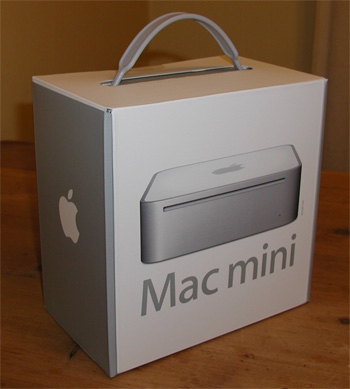
Mac Mini

Oh yes.

My new Mac Mini

Update (late, late in the evening): Oh no.

What’s good:

  • It works.
  • It’s beautiful.
  • Q: whereis ruby? A: /usr/bin/ruby. Yum.

What’s bad:

  • My shiny new 21″ flat panel monitor has died on me. Well, partly died. It’s not accepting any signals over DVI any more, only VGA. Crap. Fortunately, it’s still well within its warranty period.
  • The Mini isn’t automatically detecting the monitor’s native resolution of 1680 x 1050, and I don’t know enough about OS X to change the resolution to something non-standard. So I’m running in crappy 1400 x 1050 fuzz-o-vision right now.
  • Actually, I don’t know enough about OS X, period. (How does this dock thing really work? What’s the right way to install applications?) Anyone with Mac experience care to recommend a decent book?
  • I got myself a new Apple Pro keyboard aaaaand….mmmm…not convinced yet. I like the keyboard action, but I don’t like not having anythere to rest my right hand’s fingers nearby the arrow keys without them getting caught in the grooves.
  • And what the hell’s up with putting the @ sign over the number 2 key? Yuck. (Again, anyone with Mac experience…please point me in the direction of a keyboard remapping utility.)
  • And the mental gymnastics of getting used to a different set of command keys… Yurkle.

Preparing for a Mac Mini

With apologies to those of you who think I should just SHUT UP AND BUY THE DAMN THING ALREADY, it’s much more complicated than that. For a start, there’s the whole issue of peripheral devices: keyboards, mice, monitors, external drives, iPods, printers, etc. It struck me the other day that the Mac Mini only has two USB ports, and one firewire port. It also only has an audio out jack, with no way to simply connect a 3.5mm-plug microphone. Given that I’m aiming for a dual PC/Mac setup, this is going to require some thought and planning.

My current plan involves the acquisition of three new items:

  • 4-port USB switching hub. There are several models on the market, and they’re substantially cheaper than a decent KVM switch. Also, my monitor is a widescreen LCD panel running at 1680 x 1050. Most analog KVM switches will handle a video signal of that resolution, but analog KVM switches also make your picture look like shit. And reasonably priced digital switches currently don’t do more than 1600 x 1200.
  • Either a PS2-to-USB adapter for my current (PS2) keyboard, or a new USB keyboard. The adapters aren’t cheap, and buying a new keyboard might even cost less. The problem with this is finding a keyboard I like. (Also, the question of whether to get a Mac or a PC keyboard comes into play. because they use different command and option keys to the left and right of the keyboard. Which option will be less confusing?)
  • A USB microphone. The Labtec mike I bought last month is a 3.5mm job, and that’s not gonna fly any more.

And they all fit together thusly:

  • Big (300GB) external hard drive: stays connected to PC via FireWire. PC will act as a file server over the network.
  • Printer: stays connected to PC via USB. PC will also act as a print server.
  • Audio out: I run the stereo output from my PC to an amp under my desk which drives my desk speakers. The Mac’s audio output will just go to another set of inputs on the amp. Switching audio between machines will require changing the dial on the amp.

  • External DVD writer (LG GSA-5163D): this has one FireWire connector, and two USB connectors. I think I can have this connected to the Mac and the PC at the same time. It’ll go to a free FW port on the PC, and directly to one of the Mac Mini’s two USB ports. Burning DVDs reliably requires good data throughput, and I don’t want any it to hiccup on any USB hubs in the middle.
  • USB switching hub connects to a free USB port on the PC, and the second USB port on the Mini.
  • Mouse, keyboard, and microphone: these all connect directly to the USB switching hub, so they flip back and forth between the Mac and PC.
  • Monitor: the Dell 2005 FPW has lots of different inputs, so it’s going to get a VGA cable from the PC, and a DVI cable from the Mini. (This may change depending on the signal quality from each machine, and which one I end up using more often.) Switching between video signals will be a matter of toggling a button on the monitor. The monitor is also a 4-port USB hub, so its upstream eand gets plugged into the remaining port on the USB switch. That way everything connected to the monitor can also flip between Mac and PC.
  • Media card reader, USB flash memory hard drives, and phone: will all plug into a USB port on the monitor when needed.
  • iPod: will connect to the FireWire port on the Mac Mini. For some reason, my iPod refuses to charge from a USB cable. And before you say it, yes, it’s definitely a powered USB cable I’ve been trying. I’ve tried it on several different machines, in fact, and it barfed on all of them. This is doubly annoying because (for noise reduction reasons) my PC is in a different room than my desk, and the FireWire cable that comes with an iPod doesn’t stretch that far. The Mini, however, will sit on my desk, and the iPod can snuggle up to it when it’s feeling lonesome.

…And all of this is before I’ve even got started on the new software I’ll need…